
Google Assistant
Google LLCProductivity
3.948.56K Reviews
- Version
- 0.1.884448652
- Installs
- 5.00B
- Age Rating
- Everyone
Screenshots
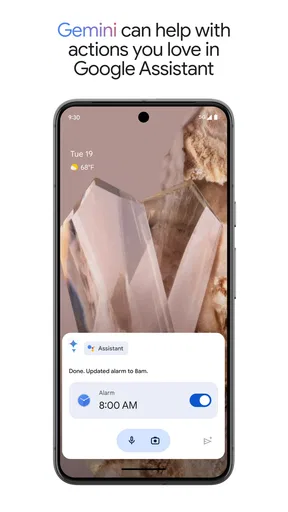
Our Review of Google Assistant
 Analysis by Appyee
At my place, a voice assistant is most useful when nobody has a free hand: someone is chopping vegetables, another person is trying to remember what to buy, and a phone is across the room. Google Assistant can make those small moments easier, but sharing a room with an assistant is different from using one alone. I’d treat it as a convenient way to handle quick requests, not as a household organizer that automatically understands everyone’s needs.
When one device serves several people
A shared phone or speaker can be handy for simple, immediate tasks. Anyone nearby might ask for a timer, the weather, or a song, while the person who owns the device remains responsible for its accounts and settings. That distinction matters: a voice request may be easy to make, but calendars, messages, and other personal services can involve information that belongs to one particular account.
For example, imagine dinner is being prepared while someone else is setting the table. One person can ask for a cooking timer, and another can ask about the weather before deciding whether to eat outside. Those requests are naturally shared. A question about a private calendar or a message is different; I would check which account is connected and avoid assuming that every voice in the room should be able to reach the same personal information.
Set boundaries before connecting personal accounts
Setup is straightforward, but I would not rush through the account choices just to get to the first command. Think about whose phone or speaker is being used, which Google account is active, and whether linking other services is actually useful for that household. A device used by several people can still be tied to one person’s account, so convenience should not be confused with separate personal profiles.
That practical boundary helps prevent awkward surprises. If you want shared access to household reminders, agree on what belongs in the shared account or calendar before relying on voice requests. Keep private appointments and messages in the appropriate personal account, and take a moment to review the connected services when the device’s role changes. These are simple habits, but they make shared use more predictable.
Coordination works best when the task is clear
For household coordination, I find spoken reminders most useful when they are specific and tied to a clear moment: a timer while cooking, a prompt to make a call later, or a calendar check before leaving. The assistant can help someone capture a thought without stopping what they are doing. Still, it does not replace the conversation needed to decide who is doing a task or whether everyone has seen the same plan.
A useful trade-off is that voice entry is quick, while reviewing and correcting details may be easier on a screen. If a reminder matters, say the time and task clearly, then check that it landed where you expect. For shared plans, make sure the people involved can see the relevant calendar or reminder through the account and service they use; a voice assistant cannot make an account boundary disappear.
Age, trust, and everyday judgment
The app is rated for Everyone, which makes it broadly suitable for general audiences, but that does not mean every household should give every person unrestricted access to a shared device. Younger users may be able to ask ordinary questions or set a timer, while an adult can decide which accounts and connected services belong on the device. I would explain that voice requests can interact with the owner’s setup and that personal messages or calendar details should be treated as private.
Trust also comes down to choosing the right moment for voice control. A spoken command is convenient in the kitchen or while getting ready, but it can be less suitable in a quiet room, around guests, or when the request concerns sensitive information. If you are uncomfortable speaking a request aloud, using the relevant app directly is the more sensible option.
Getting Started with Your New Assistant
First things first, downloading Google Assistant is a breeze. Whether you're on Android or iOS, it's just a quick trip to the store, and you're good to go. Once installed, it seamlessly integrates with your device, ready to assist you with just a "Hey Google." Setting it up is simple, and it walks you through connecting your accounts and customizing your preferences.
Everyday Tasks Made Easy
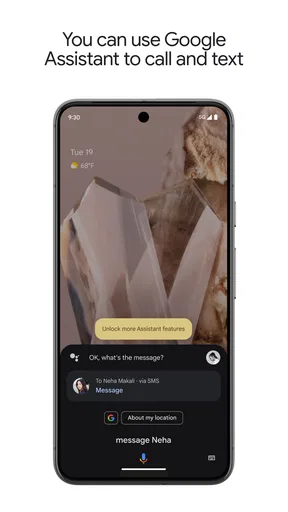
If you're like me, juggling a million tasks at once, you'll appreciate what Google Assistant brings to the table. Need to set reminders, send texts, or even check the weather? Just ask! What's cool is how it understands natural language, which means you can talk to it like you would with a friend. "Remind me to call Mom at 6 PM" or "What's on my calendar today?" and it’s got you covered.
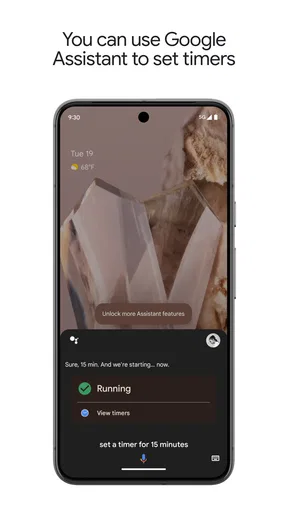
But it doesn't stop there. You can ask it to play your favorite playlists, control smart home devices, and even make hands-free calls. I found it particularly handy when cooking—"Hey Google, set a timer for 10 minutes"—and voilà, no need to wash my hands just to press buttons on my phone!
Integration with Other Apps
One of the standout features of Google Assistant is its ability to integrate with a plethora of other apps. From Spotify to WhatsApp, it bridges the gap between different services, making your phone a truly interconnected device. Want to send a quick message on WhatsApp? No need to even open the app. Just tell your Assistant what to do, and it’s on it.
I also love how it works with Google’s own suite of apps. If you’re a user of Gmail, Google Calendar, or Google Maps, the integration is seamless and incredibly helpful. Imagine navigating through a city while keeping your hands firmly on the wheel, all thanks to voice-guided directions. It’s a game-changer, especially on those long road trips.
A Personal Touch with Routines
Now, let's talk about routines. This is where Google Assistant shines in personalizing your experience. You can set up custom routines that trigger multiple actions with a single command. For example, saying "Good morning" can prompt it to turn on the lights, read you the news, and tell you about your day’s agenda. It’s like having your very own concierge!
If you're into smart home devices, this feature is a dream. You can link your lights, thermostat, and even the coffee maker to your routines. Waking up to a freshly brewed cup of coffee without lifting a finger? Yes, please!
Choosing it over a dedicated organizer
I see Google Assistant as a fast voice layer for tasks, rather than a full replacement for a to-do app, calendar, or notes system. Compared with opening a dedicated organizer, asking aloud can be faster when your hands are busy or a thought is likely to slip away. But a visual task list is better for sorting priorities, scanning a week of commitments, and editing several items at once. I use voice for capture and quick checks, then rely on the relevant app when I need to review the bigger picture.
That difference is especially useful to remember when choosing between an assistant and a shared family planner. A planner gives everyone a visible place to coordinate; an assistant is strongest when a short spoken command saves a few steps. If your household needs clearly assigned chores, detailed project tracking, or a single view of everyone’s availability, use a dedicated tool for that job and treat voice commands as a helpful extra.
Small habits that make voice requests more reliable
In my experience, the best requests are short and contain the detail that distinguishes one task from another. Instead of saying only that you need to remember something, include the action and a useful time. For a calendar question, name the day or the kind of event you mean if the first answer is too broad. This is not about learning a special command language; it is about giving the assistant enough context to avoid a frustrating back-and-forth.
I also like to use voice for capturing a task, then glance at the screen when accuracy matters. That quick check is worthwhile for a message recipient, a reminder time, or a route before setting off. Voice interaction is convenient, but it is not automatically the safest way to confirm a detail with consequences. For driving, set up navigation before moving and follow local road-safety rules rather than treating hands-free controls as permission to become distracted.
What to expect from connected services
App integration can save time, but it is not a guarantee that every service will respond to every phrasing or be connected on every device. If a request fails, I would first check whether the relevant service is linked and whether the command is clear, then open that app directly if the task is urgent. This is a useful fallback, not a flaw unique to voice assistants: third-party services have their own sign-in and setup requirements.
The same point applies to smart-home routines. They are worthwhile when the devices are already part of your daily life and the sequence is genuinely useful. If you only want a light switched on occasionally, using its regular control may be simpler than building a routine. I would start with one repeated action, see whether it fits naturally, and add more only when the saved effort is real.
Who will get the most from it
I would recommend it to people who already use Google services, want quick hands-free access to everyday actions, or often need to capture reminders while doing something else. It also makes sense for someone who enjoys trying voice commands and has compatible home devices they already control. Google LLC develops the app, and it is free, so trying it does not require a purchase; the practical question is whether voice interaction fits your habits.
I would be less enthusiastic for someone who prefers typing, keeps a tightly organized paper or digital planning system, or does not want a microphone-based assistant involved in daily routines. It may also be a poor fit when several people expect separate personal results from one device but have not agreed on account access. In those cases, a conventional calendar, notes app, or direct control from each person’s own device can be clearer and more comfortable.
For a parent or household organizer, I would make the first use deliberately simple: a shared cooking timer or a weather check, then a reminder that everyone understands. Avoid putting sensitive information into a shared voice workflow merely because it is convenient. The app has an Everyone content rating, but good judgment still depends on the setting, the accounts connected, and the kind of request being made.
How the app feels as a long-term choice
Google Assistant has been available since October 4, 2017, and its current version is 0.1.884448652. It has a 3.8 average from around 1.3 million ratings, with about 48,000 reviews and more than 5 billion installs. Those figures suggest that it is widely used, not that every feature will suit every person. It is free and listed for Everyone, and it requires Android 6.0 or later.
I would treat the rating as a reminder to set expectations rather than as a verdict. An assistant can feel excellent for a timer and irritating for a request that depends on a particular account, connected app, or exact wording. If you are deciding whether to keep using it, judge it by the few actions you repeat most often: do they work smoothly, and do they save enough effort to justify speaking to your device?
Privacy controls and the choice to use less
The original appeal of voice assistance is convenience, but comfort matters just as much. Google Assistant offers ways to manage data and voice recordings, including deleting activity logs. I would take a few minutes to look at those controls during setup rather than waiting until a privacy concern comes up. You can also choose not to use voice for particular tasks and open the relevant service yourself; using an assistant does not have to mean routing every interaction through it.
For shared spaces, that choice is worth discussing openly. A household member may be happy to ask for a timer but not want personal searches or account details spoken where others can hear. Agreeing on that boundary is more useful than assuming everyone has the same comfort level. A little clarity about what the device is for can prevent a convenient tool from becoming an uncomfortable presence.
A practical household verdict
In a home, I would keep Google Assistant focused on low-stakes tasks that benefit from hands-free access: timers, weather, music, and quick personal reminders. I would use a visible calendar or task list for plans that need review by several people, and keep personal account activity separate from shared requests wherever possible. That split makes the assistant useful without asking it to solve household coordination on its own.
For an individual, it can be a handy companion to Google Calendar, Maps, Gmail, and compatible services. For a household, it is best understood as a convenient point of access whose behavior depends on setup and account boundaries. If that matches what you want, it is worth trying. If you need a dedicated shared planner, stronger separation between users, or a mostly screen-based workflow, choose a tool built around those needs instead.
The Future of Virtual Assistance
We're living in an era where technology is evolving rapidly, and Google Assistant is proof of that. It's constantly getting updates, learning new skills, and becoming more intuitive. Privacy is something it takes seriously, with options to manage data and voice recordings. You can even delete your activity logs if that’s a concern for you.
While it’s already quite capable, I’m excited to see what the future holds for Google Assistant. The potential for even deeper integration with our daily lives is immense, and I’m all for it.
So, is Google Assistant worth a shot? Absolutely. Whether you're tech-savvy or just looking for a helping hand, it’s got something for everyone. It's like having a little piece of the future right in your pocket. Give it a try, and you might just wonder how you ever got by without it!
How Google Assistant Compares
Full ComparisonChoose Google Assistant for voice commands and smart-home control, ChatGPT for flexible conversation and creation, or Perplexity for answers designed to be grounded in sources.
| App | Developer | Rating | Price |
|---|---|---|---|
 Google AssistantThis App | Google LLC | 3.9 | Free |
 ChatGPT | OpenAI | 4.8 | Free |
 Perplexity - Ask Anything | PerplexityAI | 4.6 | Free |
Verdict
Strengths of Google Assistant
- Seamless integration with smart home devices.
- Voice recognition is highly accurate.
- Supports multiple languages.
- Continually updates with new features.
- Works well across platforms.
Limitations of Google Assistant
- Can be slow with complex queries.
- Requires a stable internet connection.
- Limited offline functionality.
- Privacy concerns over data use.
- Occasional errors with accents.
Other Releases by Google LLC
View All
Google Calendar
Productivity4.6

Google Messages
Communication4.6

Tools4.0

Google TV
Video Players & Editors3.9
Similar Picks in This Category
View AllGoogle Calendar
Google LLC4.6

Google Drive
Google LLC4.3

Microsoft OneDrive
Microsoft Corporation4.6

Samsung Calendar
Samsung Electronics Co., Ltd.4.1

Microsoft OneNote: Save Notes
Microsoft Corporation4.6

HP Print Service Plugin
HP Inc.4.1
You May Also Like
View All

Frequently Asked Questions
What is Google Assistant and how does it work?
Google Assistant is a virtual assistant powered by artificial intelligence, designed to help you with tasks and answer questions. It works through voice commands or typing, and is integrated into Android devices, smart home devices, and can be downloaded on iOS. It leverages Google's vast search capabilities to provide information, control smart home devices, and much more.
Can Google Assistant understand multiple languages?
Yes, Google Assistant supports multiple languages and can switch between them seamlessly. You can set it to understand and respond in different languages, making it versatile for multilingual users. It's crucial to check if your preferred languages are supported, as the list is continually expanding.
What are some key features of Google Assistant?
Google Assistant offers a wide range of features, including setting reminders, sending messages, making calls, controlling smart home devices, and providing real-time information like weather updates and traffic conditions. It can also play music, answer questions, and help with managing your schedule, making it an all-in-one digital assistant.
Is Google Assistant safe to use regarding privacy?
Google Assistant is designed with privacy in mind, but it's important to understand how your data is used. Voice recordings are stored for improving service quality, but users can manage and delete these through their Google Account settings. Always review privacy settings to ensure they align with your comfort level.
How can I set up and customize Google Assistant on my device?
Setting up Google Assistant is straightforward. On Android, it typically comes pre-installed; you just need to activate it by saying 'Hey Google.' On iOS, you can download it from the App Store. Customize its settings through the Google Assistant app or your device's settings to tailor its functionality to your needs.
